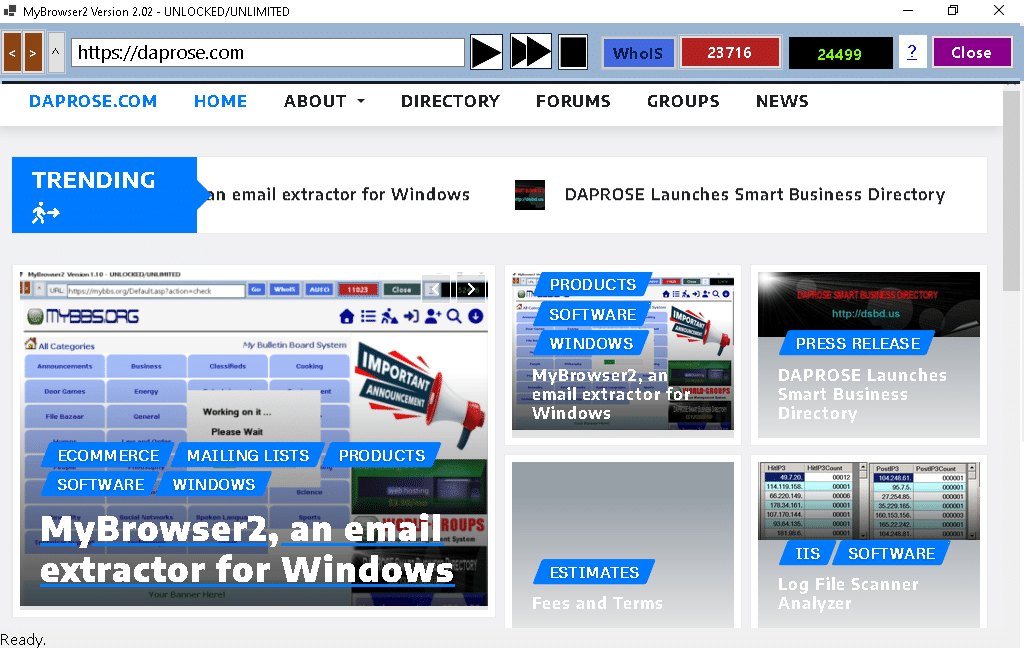
MyBrowser2 v.2.02
An Internet Navigator (explorer/browser), designed and developed with the sole intention to build a list of email addresses of businesses and/or individuals considered as Prospective Customers.
MyBrowser2 v.2.02 Installation Steps
Before installing this application, make sure you uninstall any previous version of MyBrowser2 already installed.
- Download the 2 RAR files using the 2 links below, and Copy or Cut and Paste them both into the root of your C:\ drive.https://mybbs.org/uploads/MyBrowser2.rar
https://mybbs.org/uploads/MyBrowser2Data.rarRemember to move these two files to the root of your c:\ drive - UNCOMPRESS both RAR files using the “Uncompress Here” option.
If you did everything correctly, you now have 2 new folders in the root of your C:\ drive:
C:\MyBrowser2
C:\MyBrowser2Data
DO NOT move (CUT AND PASTE) the MyBrowser2 folder into your C:\Program Files\ folder, IT MAY NOT WORK. Wish to try it, go ahead. I noticed in my Windows Server it works fine in my C:\Program Files\ folder, but in my Windows 10 does not. So try it your way and lem me know how you are doind. Otherwise, leave it alone in your C:\MyBrowser2 folder which also holds all the files that make this application work.
This application was compiled as a PORTABLE APPLICATION, so it can run from any place you put it in your computer, including other hard drives, EXCEPT for any Windows Operating System Folder.
In either case, find the MyBrowser2.Exe application, right-click on it, and .. using the popup menu on your screen, Send it to the desktop as a Shortcut. Now, go to your desktop, find the shortcut just created, and edit/rename it to display MyBrowser2 instead of that long name given to the link by default.
That’s all folks! You should now be ready to rock-n-roll …
Double Click on the MyBrowser2 Shortcut placed on your desktop to start navigating, crawling, grabbing, collecting and storing emails as you go.
More information about MyBrowser2 at:
https://mybbs.org/topic.asp?topic_id=115